Split Backing Track: Click on One Side, Music on the Other
· 6 min read
You want the click on one channel and the music on the other, so each can go to a different place. That file takes a minute to make, and this article shows how.
But it is worth asking one question first, because the whole choice hangs on it: do you want the count-in separated from the music at all? If yes, so it can be fed to chosen ears, usually the drummer's in-ears, you want the split. If no, because you play on your own or the whole band can simply hear the count inside the song, you want the simpler export. We will cover both.
Try it on your own track, free
How the split format works
A stereo file has two channels. Nothing forces them to carry a left and a right version of the same mix. In a split backing track they carry two different things:
- Left channel: the count-in. The clicks the band needs to hear.
- Right channel: the music. The song itself, summed to mono.
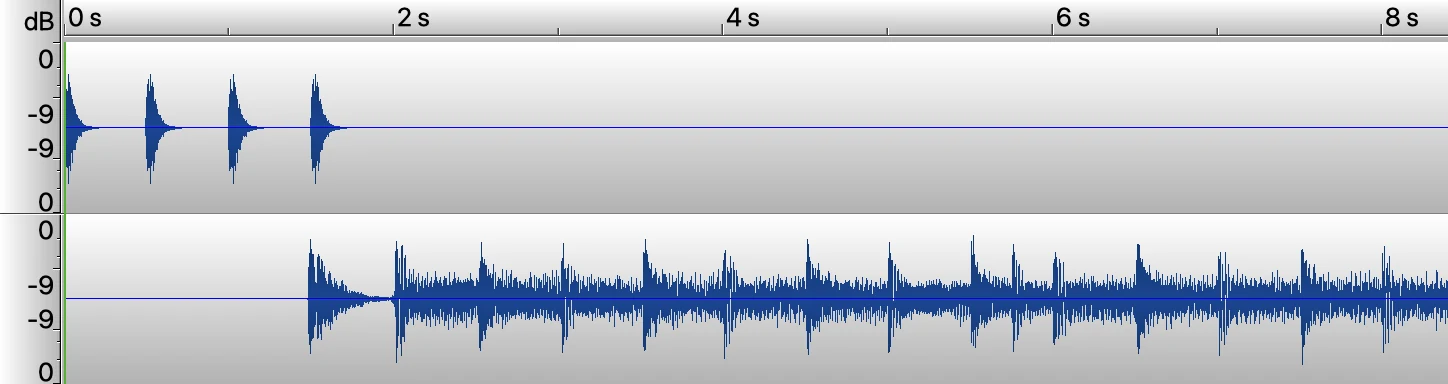 A split export: four clicks on the left channel and nothing after them, the song on the right channel with no clicks in it.
Because the two things live on separate channels, a mixer gives each one its own fader. Send the left channel to the drummer's in-ears and the right channel to the PA, and you have full control over who hears the count: the drummer gets it loud, the room gets none of it.
This is the format bands running tracks live have used for years. Sound on Sound describes it in its guide to preparing backing tracks: one channel is designated the click channel, heard only by the musicians on stage, while the other carries the audio the audience is meant to hear. It caught on because it needs nothing exotic: every phone, laptop and sample pad already has a stereo output. Setlist apps play the format out of the box too, though Stage Traxx's own count-in depends on the version, which is one more reason to bake the count into the file.
Wiring it up
- Export your track with Split selected.
- Play it from a phone, laptop, or sample pad.
- Put a stereo-to-two-mono Y cable in the output, or use two outputs of an interface.
- The left leg (count-in) goes to the in-ear mix or headphone amp.
- The right leg (music) goes to the PA.
Why the music is mono
If the original mix had instruments panned wide, separating the channels would leave the PA with half a mix: whatever sat on that side. So the music is summed to mono before it goes on its channel. Most rooms hear a mono backing track through the PA anyway.
Do you need it?
That depends on one thing only: whether the count-in needs its own feed.
You want the split when the count should reach chosen members of the band and nobody else. In practice that means monitoring, usually in-ears: the drummer hears the count on their own channel with its own fader, front of house gets the song and nothing more.
You want Mixed when there is no one to feed separately. You play on your own, you practise, or the whole band simply hears the count as part of the song, the way it would hear a drummer's sticks. Then the count-in belongs inside the file:
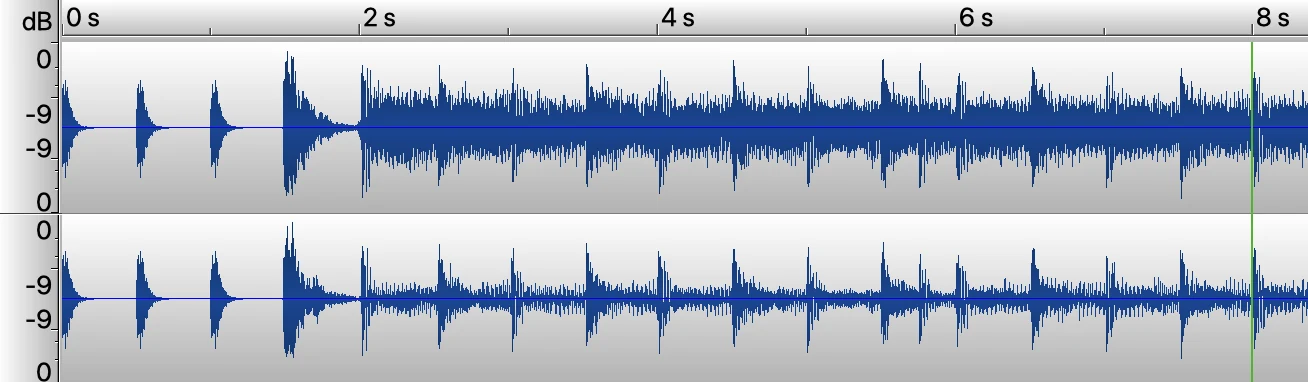 A mixed export: the count-in sits inside the music, in both channels. One file, nothing to wire.
And if the room hears the count, that is not a failure. A live drummer counting on sticks is heard by the room too. The split exists to give you the choice, not because the count is something to hide.
If you are not sure, start with Mixed. You can export the same track again as a split whenever your setup grows into it. Exports are unlimited.
What lands on the count-in channel
Worth being exact here, because click track and count-in get used interchangeably when they are not the same thing. If what you need is the click through the whole song, the click track maker exports it in exactly this split layout.
CountIn bakes a count-in, not a click that runs through the whole song. On a split export, the left channel carries:
- the count-in bars before the downbeat, and
- the INTRO bars, if you added any, which keep clicking into the first bars of the song.
After that the channel goes quiet and the band plays on its own. If you need a click through the entire song, that is a different tool.
One thing that looks like a bug and is not
Play a split file on normal speakers or headphones and it sounds wrong: the music comes from one side only, and the file is a few decibels quieter than the mixed one. That is normal. One channel holds the count-in and then nothing, so half of what your speakers get is an empty channel.
The music channel itself is at full level. Send it to a mono PA input, which is what it is made for, and it is exactly as loud as a normal export.
Frequently asked questions
Is a split backing track still a stereo file?
Yes. It has two channels like any stereo file. The difference is what is on them: a count-in on one side and the music on the other, instead of a left and right version of the same mix.
Why is the music in mono on a split track?
Because the two channels are about to be separated. Anything panned in the original mix would end up on only one of them, so the audience would hear half a track. Summing the music to mono first means the PA gets all of it.
Can I put the count-in on the right channel instead of the left?
Yes. The Split export uses the standard layout (count-in left, music right), and there is also a channel option that mixes the count-in into just the left or just the right channel of your own stereo file, leaving the other channel untouched. Handy when your file already has stems arranged per channel, like drums on one side for the PA. More on that rig in how to play live with a click track.
Does the split file contain a click for the whole song?
No. It carries the count-in, plus the INTRO bars if you added them. After those, that channel is silent. A click running through the entire song is a different feature.
Do I need special gear for this?
For the split: a stereo-to-two-mono Y cable, or an interface with two separate outputs, plus something to route them with. The Mixed export plays anywhere, no routing involved.
Try it on your own track, free
← Back to Blog · Click track · Free BPM finder · Tap tempo · Key changer